

 Jinba Flow
 Jinba App
 Jinba Toolbox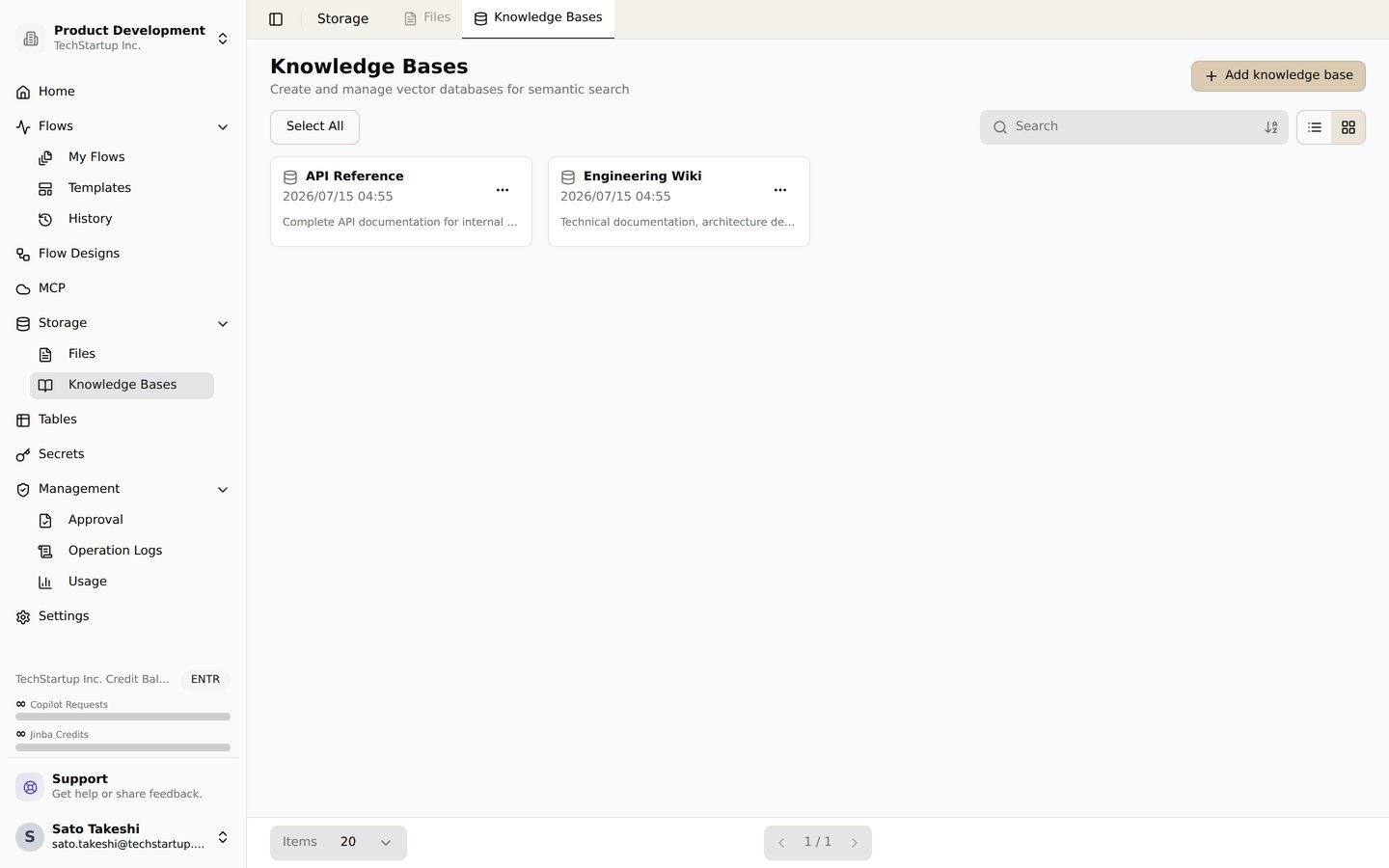
The knowledge base list. Create and manage vector databases for semantic search
Store and search documents in a knowledge base
Jinba Flow’s Knowledge feature provides powerful vector database capabilities for building RAG (Retrieval-Augmented Generation) systems. You can create knowledge bases, upload documents, perform semantic search, and integrate AI-powered question-answering into your workflows.What are Knowledge Bases?
Knowledge Bases are vector databases that store documents with automatic chunking and vectorization. They enable semantic search capabilities, allowing you to find information based on meaning rather than exact text matches.Key Features
- Document Storage: Upload PDF, TXT, MD, CSV, DOCX, XLSX and JSON files of up to 100 MB each. A DOCX or XLSX file must be a genuine Office document (password-protected, encrypted or malformed files are rejected); an archive that would expand far beyond its size (more than 10,000 entries, more than 256 MiB in one entry or 1 GiB in total, or — once it expands past 8 MiB — more than 200× its compressed size) is rejected at upload
- Automatic Processing: Documents are automatically chunked and vectorized
- Semantic Search: Find relevant information using natural language queries
- RAG Support: Perfect for building AI-powered question-answering systems
- Vector Embeddings: Uses OpenAI’s text-embedding-3-large for high-quality embeddings
Creating a Knowledge Base
- Navigate to Storage in the workspace sidebar
- Click on the Knowledge Bases tab
- Click Create Knowledge Base
- Enter a name and description for your knowledge base
- The knowledge base is created and ready for file uploads
Adding Files to Knowledge Base
Using the UI
- Open your knowledge base from the Storage page
- Click Upload File or Add File
- Select files from your computer, drop files or whole folders onto the dialog (up to 1,000 files per folder), or provide a URL. Files in an unsupported format or over the size limit are listed and skipped
- Files are automatically processed:
- Parsing: Extract text content from documents; PDF pages without a text layer are read with OCR
- Chunking: Split documents into manageable chunks (configurable)
- Embedding: Convert chunks to vector embeddings
- Indexing: Store vectors for fast similarity search
Processing a file consumes Jinba Credits of the workspace’s organization, priced from the embedding tokens of its chunks and, for PDF pages read with OCR, the OCR tokens — see Knowledge Base Uploads. While the organization has no Jinba Credits left, a new file is not processed and is marked failed with an insufficient-credits message.
Using Workflows
You can also add files to knowledge bases programmatically using theJINBA_KNOWLEDGE_BASE_FILE_ADD tool:
- pending: File uploaded, waiting for processing
- processing: File is being chunked and vectorized
- completed: File is ready for search
- failed: Processing encountered an error
Vector Search
Vector search enables semantic search across your knowledge base using natural language queries.How It Works
- Query Vectorization: Your search query is converted to a vector using OpenAI’s text-embedding-3-large
- Similarity Search: The system finds chunks with similar vectors
- Ranking: Results are ranked by similarity score
- Filtering: Results below the threshold are filtered out
Using Vector Search
Building RAG (Retrieval-Augmented Generation) Systems
RAG combines retrieval of relevant information from knowledge bases with AI generation to create accurate, context-aware responses.What is RAG?
RAG (Retrieval-Augmented Generation) is a technique that:- Retrieves relevant information from a knowledge base using semantic search
- Augments the AI prompt with retrieved context
- Generates responses based on both the query and retrieved context
Step-by-Step: Building a RAG System
Step 1: Create a Knowledge Base
- Go to Storage → Knowledge Bases
- Create a new knowledge base (e.g., “Company Documentation”)
- Note the knowledge base ID for later use
Step 2: Upload Documents
- Open your knowledge base
- Upload relevant documents (PDFs, DOCX, text files)
- Wait for processing to complete (files show “completed” status)
Step 3: Build the RAG Workflow
Create a workflow that combines vector search with AI generation:Step 4: Configure Secrets
- The
tokenconfig of the Jinba tools defaults to{{ secrets.JINBAFLOW_WS_API_KEY }}, the workspace API key that Jinba Flow provides to every run, so you can omit it; the examples spell it out - Store your Knowledge Base ID as a secret under Secrets (or use it directly in the workflow)
Advanced RAG Patterns
Multi-Step RAG with Refinement
Managing Knowledge Base Files
Updating Files
You can update existing files in a knowledge base using theJINBA_KNOWLEDGE_BASE_UPDATE tool:
- FULL_REFRESH: Replaces the entire file with new content
- Other update modes may be available depending on your configuration
Chunking Configuration
When adding files to knowledge bases, you can configure how documents are chunked:- chunkSize: Size of each chunk in tokens (default: 512, max: 8192)
- chunkOverlap: Overlap between chunks in tokens (default: 128, max: 2048)
- chunkingIdentifier: String used to identify chunk boundaries (default: “\n\n”)
- Smaller chunks (256-512): Better for precise information retrieval
- Larger chunks (1024-2048): Better for maintaining context
- Overlap: Helps maintain context across chunk boundaries
RAG Best Practices
- Quality Knowledge Base: Upload high-quality, relevant documents
- Appropriate Chunking: Use appropriate chunk sizes (typically 512-1024 tokens)
- Threshold Tuning: Adjust similarity thresholds based on your use case
- TopK Selection: Retrieve enough context (typically 3-10 chunks) for comprehensive answers
- Prompt Engineering: Craft prompts that clearly instruct the AI to use retrieved context
- Source Attribution: Always cite sources for transparency and verification
- Error Handling: Handle cases where no relevant information is found
Use Cases for RAG
- Customer Support: Answer questions using product documentation
- Internal Knowledge: Access company policies and procedures
- Research Assistant: Search through research papers and documents
- Legal Document Q&A: Answer questions about contracts and legal documents
- Technical Documentation: Help developers find information in technical docs
- Product Information: Answer questions about product specifications
Related Features
- Workspace - Learn about workspace management and file storage
- Vector Search Tool - Detailed vector search documentation
- Knowledge Base Tool - Knowledge base management tools