

 Jinba Flow
 Jinba App
 Jinba Toolbox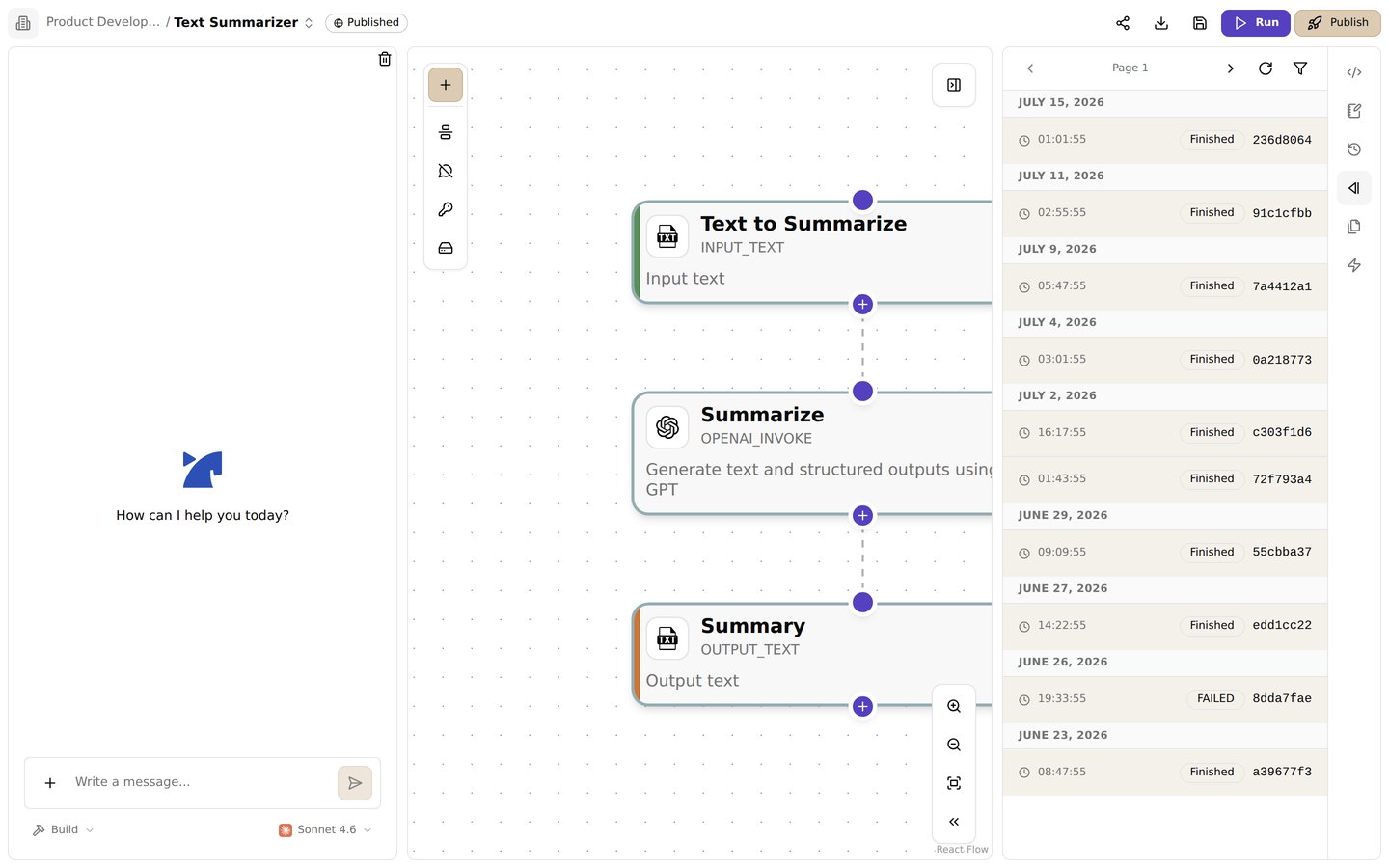
Open a run to inspect its inputs, step outputs, and errors
Inspect a failed run
- Open the flow’s run history and select the failed run.
- Find the first failed step. Steps that need it are marked cancelled, not failed, so fix the first failure before looking at them.
- Review the step’s inputs, output, and error message.
- Compare each input name and value with the selected tool’s documentation.
- Correct the flow and run it again.
StepTimeoutError), a message, and, when available, a stack trace.
Step statuses
For a
forEach step, each item has its own status. The step as a whole is partial when some items failed and others succeeded.
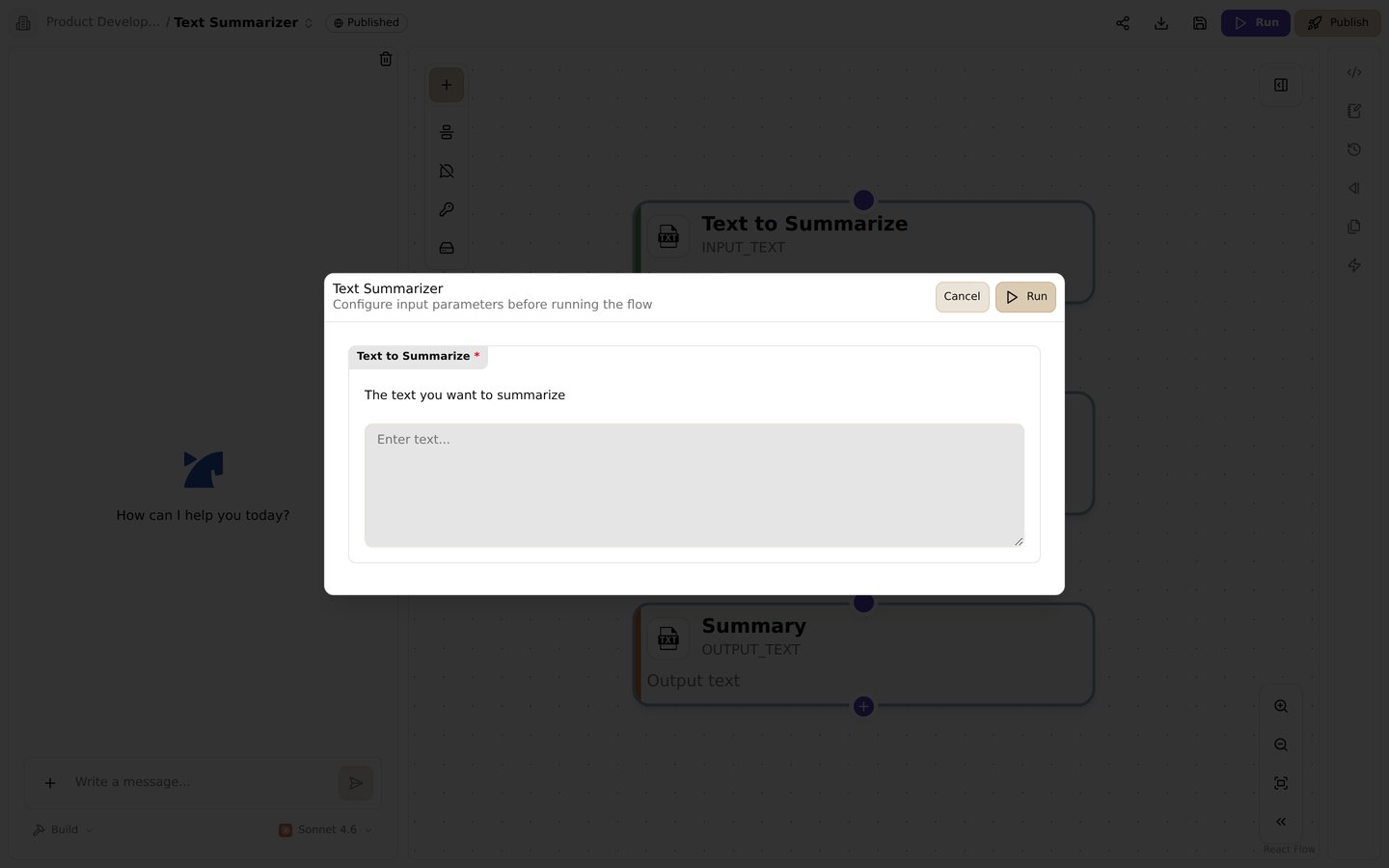
Run a flow with test inputs, then open the result details
Test one step
Use Run Step on a step to test that step without running the entire flow. If the flow has unsaved changes, use Save & Run Step.- The step reads earlier steps’ results from the latest completed full run. If you ran an earlier step on its own after that, its newer result is used.
- If the flow has never completed a full run, references to earlier steps resolve to empty values. Run the whole flow once first.
- The step runs even if its
whencondition is false or a step in itsneedsfailed, and it is not retried.
result depends on the tool; use that tool’s documentation to confirm the fields you can reference.
Troubleshoot common failures
The flow does not validate
- Check that each step has a unique ID and a valid tool ID.
- Check that each tool step has an
inputlist, even if it is empty. - Compare input and configuration names with the selected tool’s documentation.
- Check YAML indentation and step references.
See Write a YAML manifest for the manifest structure.
A step fails immediately
- Read the error shown for that step.
- For an integration step, check its credential and the permissions granted to that credential.
- Confirm required inputs are present and have the expected type.
- If the error comes from an external service, check that service’s response and status, including rate limits.
Step '<step_id>' timed out after <N>msmeans the step ran longer than its time limit.
A step is skipped or cancelled
cancelled: find the failed step it needs and fix that step first.skipped: check itswhencondition against the actual output of the steps it refers to. With{{ }}placeholders, the text is filled in before evaluation, so quote text values:"'{{ steps.check.result.type }}' == 'premium'".Failed to evaluate when condition on step '<step_id>'means the condition could not be evaluated, often because it refers to a field that the result does not have. The step is marked failed.
A later step cannot find a value
- Confirm the referenced step ID matches the manifest exactly.
- Check the prior step’s actual output; tools return different result shapes.
- Add the prior step ID to
needs. A reference alone does not make a step wait, and a missing value becomes an empty string instead of an error. - Use the supported reference form, such as
{{ steps.fetch.result }}.
A step produces unexpected output
- Compare the inputs shown for the step with what you expected; objects and arrays are inserted as JSON text.
- Check the tool’s configuration and documentation.
- Run the step again with Run Step after each change.