

 Jinba Flow
 Jinba App
 Jinba Toolbox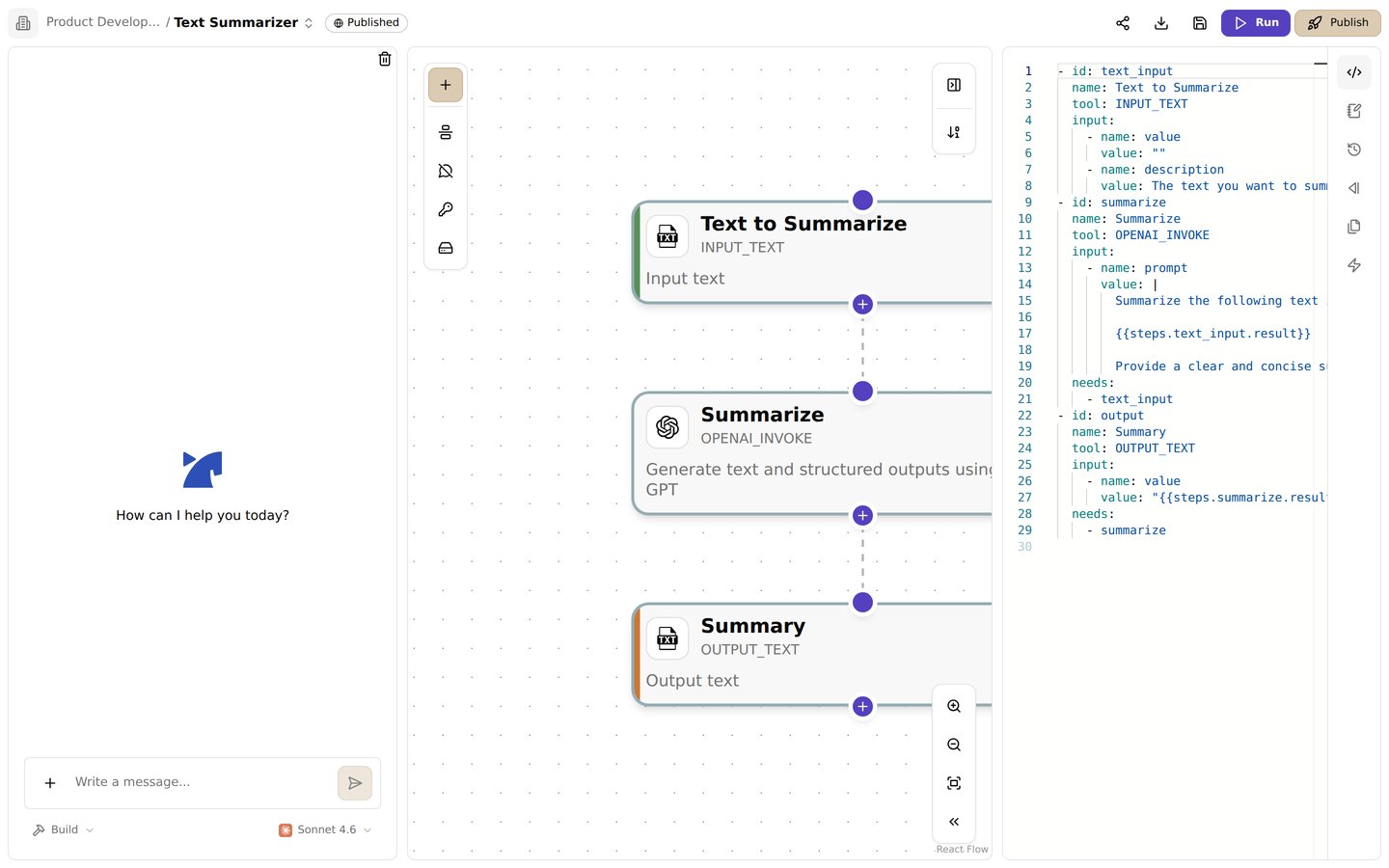
The code panel. Edit the entire flow directly as a YAML manifest
A runnable example
This flow accepts text and returns it in a greeting:Flow and step fields
A tool step must include
input, even when it has no values to pass. For example, use input: [] for a tool that takes no inputs. Include only fields supported by the selected tool.
Configure a tool
config uses the same name and value list as input. Configuration values can reference secrets but not step results:
Set the execution order
Steps run in the order set byneeds, not by their position in the file. Steps with no needs start together.
- A step waits for every step listed in
needs. Referencingsteps.<id>in an input does not make the step wait; list that ID inneeds. - Branches can split and rejoin. A step can need two steps that both need the same earlier step.
- Circular dependencies are rejected with
Flow contains circular dependencies. - If a step in
needsfails or is cancelled, the dependent step is cancelled. If every step inneedswas skipped, the dependent step is skipped too.
Pass a previous step’s result
Use the step ID and itsresult to reference an earlier output. The result’s shape depends on the tool; check that tool’s documentation before selecting a nested field.
needs list makes the dependency explicit. Step IDs also identify flow inputs: when calling a published flow, use the input step’s ID as the argument name.
Values available in templates:
A
{{ steps.<step_id>.result... }} placeholder that resolves to an object or array is inserted as JSON text. Strings are inserted as-is, and a missing value becomes an empty string. See Variables & Templates for more patterns.
Conditions and loops
Use CEL directly for a condition. For example, this expression runs a step when an earlier result has a truthyisValid field:
{{ }} placeholders. They are filled in first, and the resulting text is evaluated as CEL, so quote text values:
Failed to evaluate when condition on step '<step_id>'.
Use forEach to run a step for each item in an array. The current item is available as item in supported expressions:
steps.<step_id>.result as an array of the successful items’ results. See Step Module Options for more needs, when, and forEach examples.
Templates
Input values are rendered as Nunjucks templates before the step runs. Besides{{ }} placeholders, you can use loops, conditions, and filters:
{%-and-%}remove the whitespace before or after a tag.- Inside a loop,
loop.indexis the 1-based position. - Built-in filters include
default('<fallback>'),upper,lower,trim,replace('<old>', '<new>'),length, andjoin(', '). jsonoutputs strict JSON. A placeholder with a filter is not converted to JSON automatically, so add| jsonwhen the value is an object.- For a
forEachresult,successful,failed,results, andpluck('<field>')filter or extract per-item outputs.
zip() and inline loop filters such as for x in items if ... are not supported; use an {% if %} block inside the loop instead.
Multi-line values
Use| in YAML for a value that spans several lines, such as code or a prompt. The value continues until the indentation ends. |- does the same but drops the final line break.
Example: split and combine
This flow reads a list of numbers, sums the even and odd numbers in parallel, and combines the results:input_datareturns the parsed JSON object.sum_evenandsum_oddboth need onlyinput_data, so they run at the same time. The last line of the code is the result, available asresult.data(6 and 9).combinewaits for both branches and returns 21.
Validate a manifest
If a flow does not validate or run:- Check that each step ID is unique and contains only letters, numbers, underscores, or hyphens.
- Check that each tool ID and input name exists in that tool’s documentation.
- Check that every referenced step ID exists and is listed under
needs. - Check that result references use the output shape documented for that tool.
- Check that YAML indentation is consistent.