

 Jinba Flow
 Jinba App
 Jinba Toolbox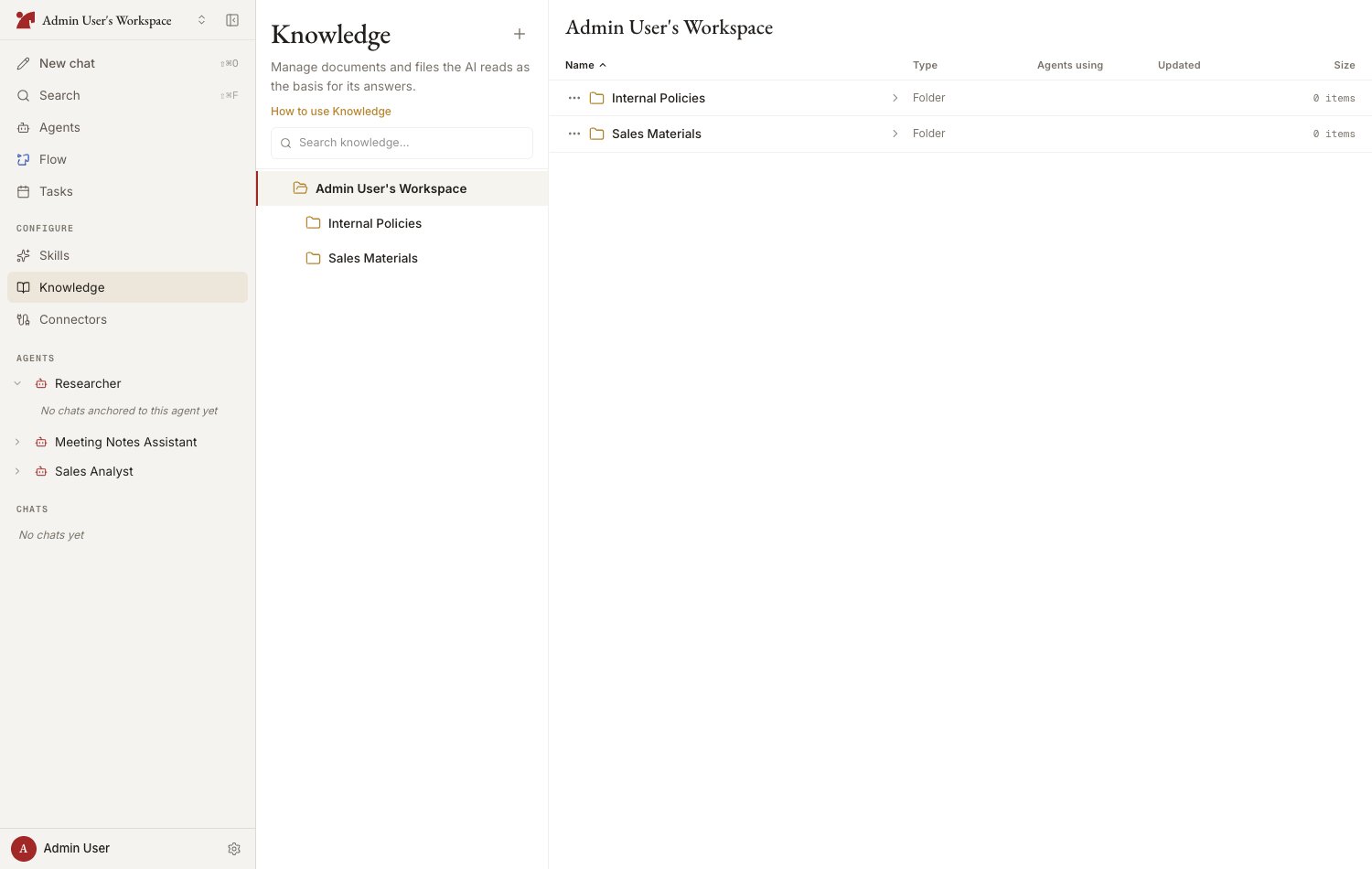
Source types
Chat is an entry point too: files the AI generates — and files you attach to a chat — can be saved straight into Knowledge, either from the deliverable card’s bookmark icon or simply by asking the AI (“save this attachment to Knowledge, in the Sales folder”). A confirmation card shows the name, destination folder, and sharing scope before anything is saved, warns if the name collides with an existing file (it is saved under a new name — nothing is overwritten), and offers “Change…” to pick a different name, folder, or scope. See AI Activity and the Workspace Panel.
Where knowledge lives
Agent-specific knowledge can be shared later: in a chat with the agent, ask the AI to make an item available to the whole workspace. The item moves into the workspace-shared knowledge (to the top level, or a folder you name), and the agent keeps access to it.
Sync status
Registered sources go through an import (sync) process. Select a source and its state is shown in the preview.
For URLs and Notion pages, use “Re-fetch” to pull in the latest content.
How the AI sees knowledge
- Knowledge attached to an agent is loaded automatically when a chat starts
- There is a limit on how many sources are auto-loaded. The AI can still search for and retrieve sources beyond the limit, so large libraries remain useful
- You can also reference a specific file or folder on the spot with
[[in the chat composer
Use an item in chat
“Use in chat” — on a file’s row menu and preview actions, or on a folder’s menu — takes you to a new chat with that file or folder already attached to the composer as a reference. Type your question and send; the AI grounds its answer in the material you started from.- Offered on the workspace Knowledge page, for sources with a stored file behind them and for folders
- If you already have a draft on the new-chat screen, the reference is added to it — nothing you typed is lost
Next steps
Add sources
Registering from files, URLs, Notion, and Google Drive
Organize with folders
Folder hierarchy, auto-sync, and the auto-load limit