

 Jinba Flow
 Jinba App
 Jinba Toolbox
What is the Chat Feature
The chat feature is the main functionality of Jinba App. You can ask questions and give instructions to AI in a conversational format to get answers.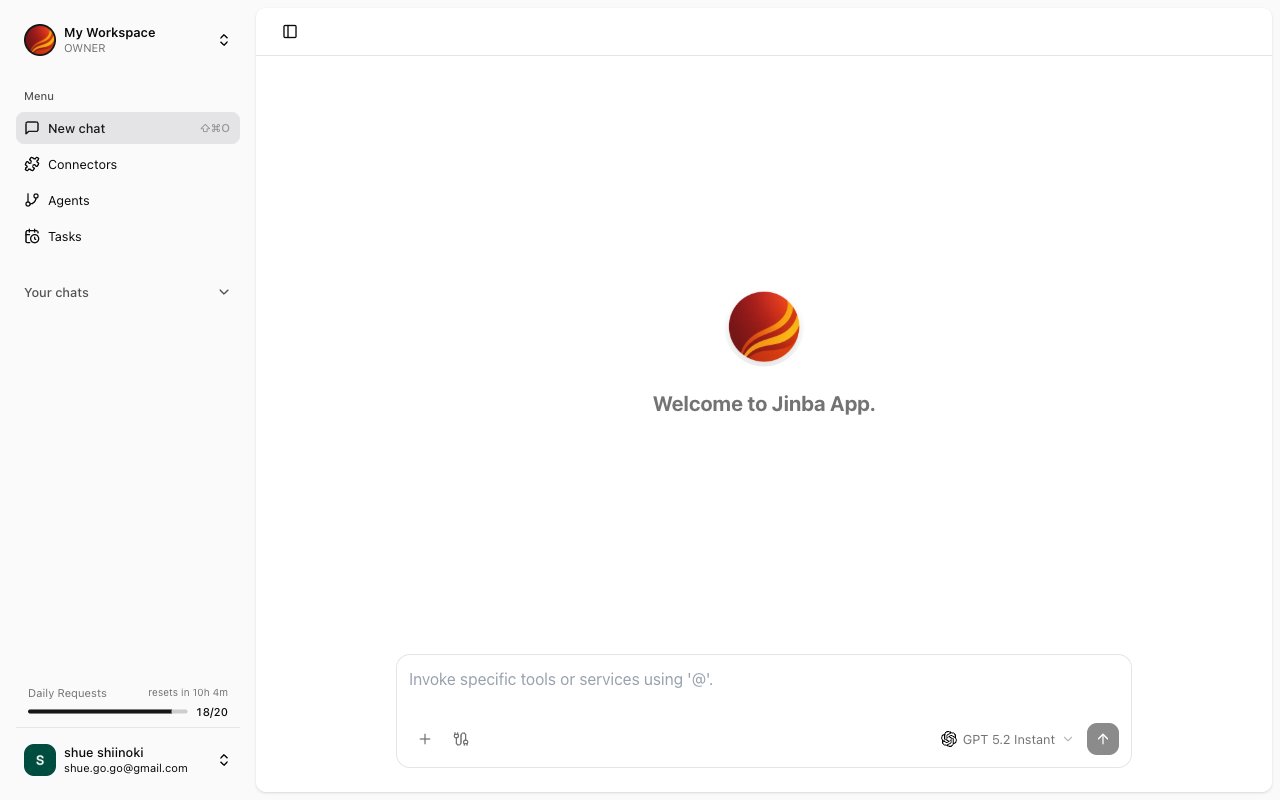
Screen Layout
The chat screen consists of the following elements:Chat List
Past chats are listed in the “Recent chats” section of the side panel on the left.- New chat: Start a new chat
- Recent chats: Click on a past chat to resume from where you left off
- See all: Opens the Chat History page, where you can search chats, sort them (newest / oldest first) and filter by date
Message Area
The conversation with AI is displayed in the center of the screen.- Messages sent by the user
- Responses from AI
- Attached file contents
- Connector execution results
Input Area
The message input area is at the bottom of the screen.- Text input field
- ”+” button (“Add File”) for attachments
- Connector button for choosing connectors and tools
- Model selector
- Send button
Key Features
Send Messages
Send text messages to AI
File Attachments
Attach files for AI to process
Using Connectors
Retrieve information by integrating with external services
Receiving Responses
Review responses from AI
Starting a New Chat
1
Click the New Chat Button
Click “New chat” at the top of the side panel menu.
2
Enter Your Message
Type your message in the input area.
3
Send
Click the send button or press Ctrl+Enter (⌘+Enter on Mac) to send your message.