> ## Documentation Index
> Fetch the complete documentation index at: https://docs.jinba.io/llms.txt
> Use this file to discover all available pages before exploring further.
# Knowledge overview
> How knowledge — the material the AI reads and references — works
**Knowledge** is where you keep the material the AI reads to ground its answers. Register internal documents, URLs, Notion pages, and Google Drive files, organize them into folders, and attach them to agents. Workspace-shared knowledge is managed on the "**Knowledge**" page in the "Configure" section of the sidebar.
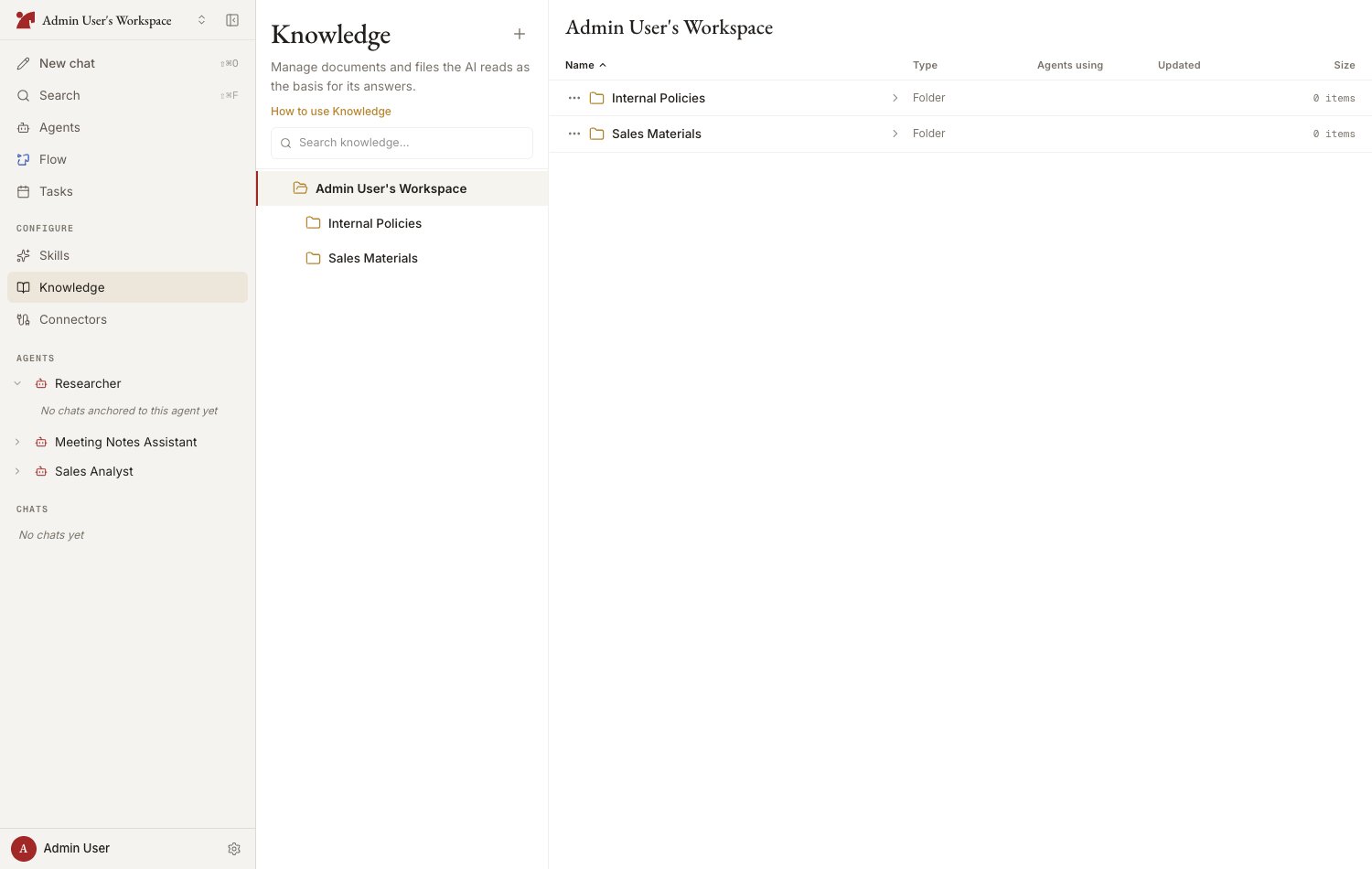 Folders and files sit in **one list**, sorted together, with a preview of whatever you select in the column beside it. Expand a folder in place with the chevron at the start of its row, or open it to make its contents the list — a breadcrumb starting at "**Workspace**" walks you back out. See [Organize with folders](/en/pages/jinba_app_neo/knowledge/organize) for the details.
## Source types
| Type | Description |
| ---------------- | ------------------------------------------------------------- |
| **Files** | Uploaded PDFs, Office documents, text files, and more |
| **URLs** | Imported web pages (HTML / PDF / Atom / RSS) |
| **Notion pages** | Connect the Notion integration and paste a page URL to import |
| **Google Drive** | Files imported from a connected Google Drive |
Chat is an entry point too: files the AI generates — and files you attach to a chat — can be saved straight into Knowledge, either from the deliverable card's bookmark icon or simply by asking the AI ("save this attachment to Knowledge, in the Sales folder"). A confirmation card shows the name, destination folder, and sharing scope before anything is saved, warns if the name collides with an existing file (it is saved under a new name — nothing is overwritten), and offers "**Change…**" to pick a different name, folder, or scope. See [AI Activity and the Workspace Panel](/en/pages/jinba_app_neo/chat/agent-activity).
## Where knowledge lives
| Location | Where to manage it | Available to |
| -------------------- | -------------------------------------------------------- | ----------------------------- |
| **Workspace shared** | Sidebar > Configure > Knowledge | Every agent it is attached to |
| **Agent-specific** | The Knowledge section of the agent's configuration panel | That agent only |
Agent-specific knowledge can be shared later: in a chat with the agent, ask the AI to make an item available to the whole workspace. The item moves into the workspace-shared knowledge (to the top level, or a folder you name), and the agent keeps access to it.
## Sync status
Registered sources go through an import (sync) process. Select a source and its state is shown in the preview.
| Status | Meaning |
| ----------- | ---------------------------------------------- |
| **Synced** | Import is complete and the AI can reference it |
| **Pending** | Import is queued or in progress |
| **Error** | Import failed. Edit the source and retry |
For URLs and Notion pages, use "**Re-fetch**" to pull in the latest content.
## How the AI sees knowledge
* Knowledge attached to an agent is loaded automatically when a chat starts
* There is a limit on how many sources are auto-loaded. The AI can still **search for and retrieve** sources beyond the limit, so large libraries remain useful
* You can also reference a specific file or folder on the spot with `[[` in the chat composer
## Next steps
Registering from files, URLs, Notion, and Google Drive
Folder hierarchy, auto-sync, and the auto-load limit
Folders and files sit in **one list**, sorted together, with a preview of whatever you select in the column beside it. Expand a folder in place with the chevron at the start of its row, or open it to make its contents the list — a breadcrumb starting at "**Workspace**" walks you back out. See [Organize with folders](/en/pages/jinba_app_neo/knowledge/organize) for the details.
## Source types
| Type | Description |
| ---------------- | ------------------------------------------------------------- |
| **Files** | Uploaded PDFs, Office documents, text files, and more |
| **URLs** | Imported web pages (HTML / PDF / Atom / RSS) |
| **Notion pages** | Connect the Notion integration and paste a page URL to import |
| **Google Drive** | Files imported from a connected Google Drive |
Chat is an entry point too: files the AI generates — and files you attach to a chat — can be saved straight into Knowledge, either from the deliverable card's bookmark icon or simply by asking the AI ("save this attachment to Knowledge, in the Sales folder"). A confirmation card shows the name, destination folder, and sharing scope before anything is saved, warns if the name collides with an existing file (it is saved under a new name — nothing is overwritten), and offers "**Change…**" to pick a different name, folder, or scope. See [AI Activity and the Workspace Panel](/en/pages/jinba_app_neo/chat/agent-activity).
## Where knowledge lives
| Location | Where to manage it | Available to |
| -------------------- | -------------------------------------------------------- | ----------------------------- |
| **Workspace shared** | Sidebar > Configure > Knowledge | Every agent it is attached to |
| **Agent-specific** | The Knowledge section of the agent's configuration panel | That agent only |
Agent-specific knowledge can be shared later: in a chat with the agent, ask the AI to make an item available to the whole workspace. The item moves into the workspace-shared knowledge (to the top level, or a folder you name), and the agent keeps access to it.
## Sync status
Registered sources go through an import (sync) process. Select a source and its state is shown in the preview.
| Status | Meaning |
| ----------- | ---------------------------------------------- |
| **Synced** | Import is complete and the AI can reference it |
| **Pending** | Import is queued or in progress |
| **Error** | Import failed. Edit the source and retry |
For URLs and Notion pages, use "**Re-fetch**" to pull in the latest content.
## How the AI sees knowledge
* Knowledge attached to an agent is loaded automatically when a chat starts
* There is a limit on how many sources are auto-loaded. The AI can still **search for and retrieve** sources beyond the limit, so large libraries remain useful
* You can also reference a specific file or folder on the spot with `[[` in the chat composer
## Next steps
Registering from files, URLs, Notion, and Google Drive
Folder hierarchy, auto-sync, and the auto-load limit